
After completing our simulation certification training sessions, many of our certified instructors have asked us how to add their certification in Markstrat, BOSS, MixPRO, BrandPRO or DIGITAL MediaPRO simulations on their Linked In profiles.
Below you will find instructions on how to include our certifications on your Linked In profile.
First, click on “Add new profile section,” go to “Accomplishments” and select “Certifications.”
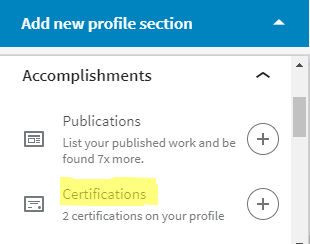
Next, fill in the details of the certification:
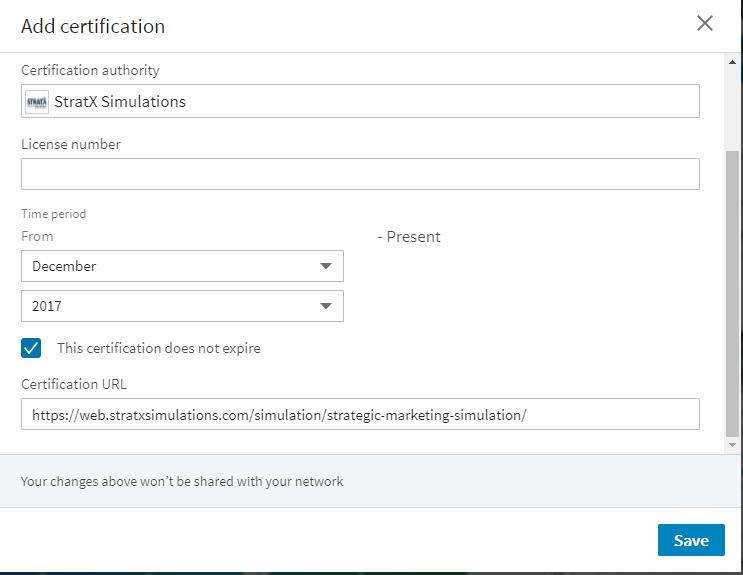
Certification Name: (Simulation Name) Instructor Certification (ex: Markstrat Instructor Certification)
Certification Authority: StratX Simulations
License Number: N/A
Certification URL:
- Markstrat: https://web.stratxsimulations.com/simulation/strategic-marketing-simulation/
- BOSS: https://web.stratxsimulations.com/simulation/business-strategy-simulation/
- BrandPRO: https://web.stratxsimulations.com/simulation/brandpro/
- MixPRO: https://web.stratxsimulations.com/simulation/a-marketing-mix-simulation-software
- Digital MediaPRO: https://web.stratxsimulations.com/a-digital-transformation-media-simulation/
Date when you completed the certification:
Click “Save” to include it on your profile.
If you are certified in more than one of our simulations, please repeat the process for each simulation.
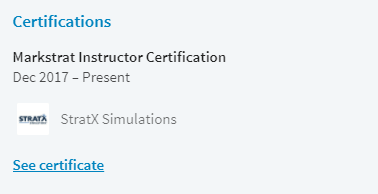
Once added, your certifications should appear on your profile like this:
If you are an instructor currently using our simulation but have not completed a certification and would like to add a simulation to your profile, please following the above instructors, but simply put “(Name of simulation) Instructor” ex: Markstrat Instructor.
If you are participant who has used one of our simulations, follow the above instructions, but put “(Name of simulation) Participant” : ex: Markstrat Participant.